Add Animated Text to Video
Add scrolling credits, a typing animation, fades or bouncing text to a video, right in your browser.
- Free
- No watermark
- No upload, runs on your device
How to add animated text to a video
1 Drop in your video
Drag a video onto the drop area or tap it to choose a file. It stays on your device.
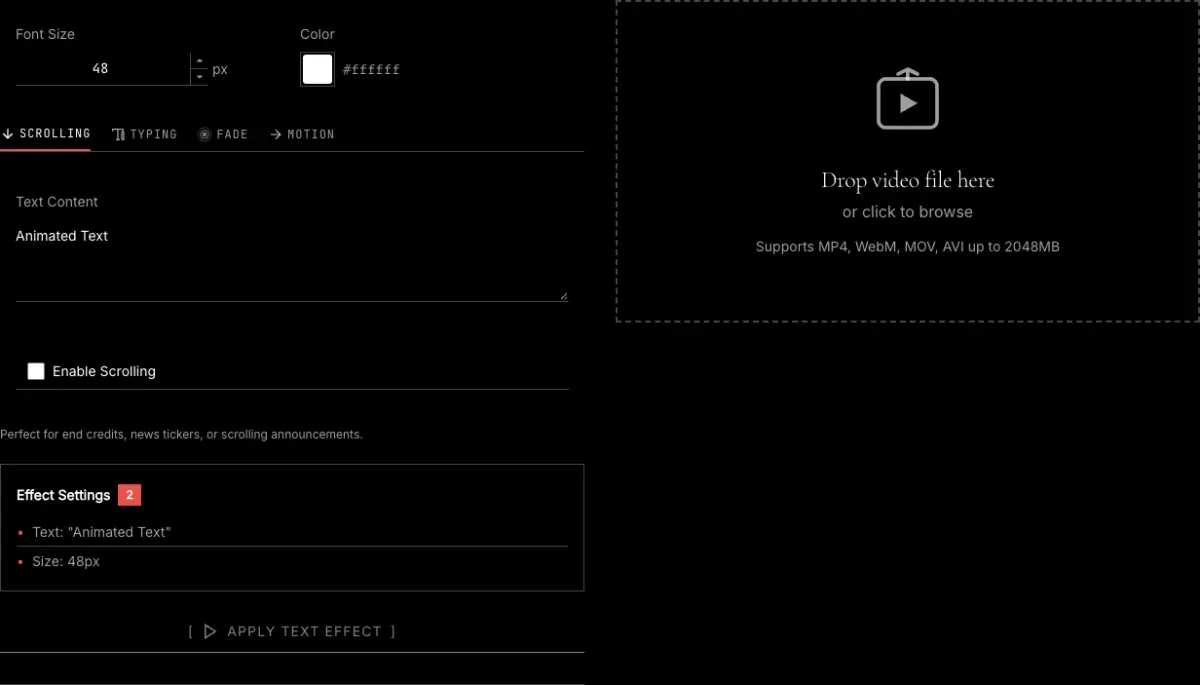
2 Pick an effect and write the text
Choose Scrolling, Typing, Fade or Motion, type the text, and set the speed, position and timing.
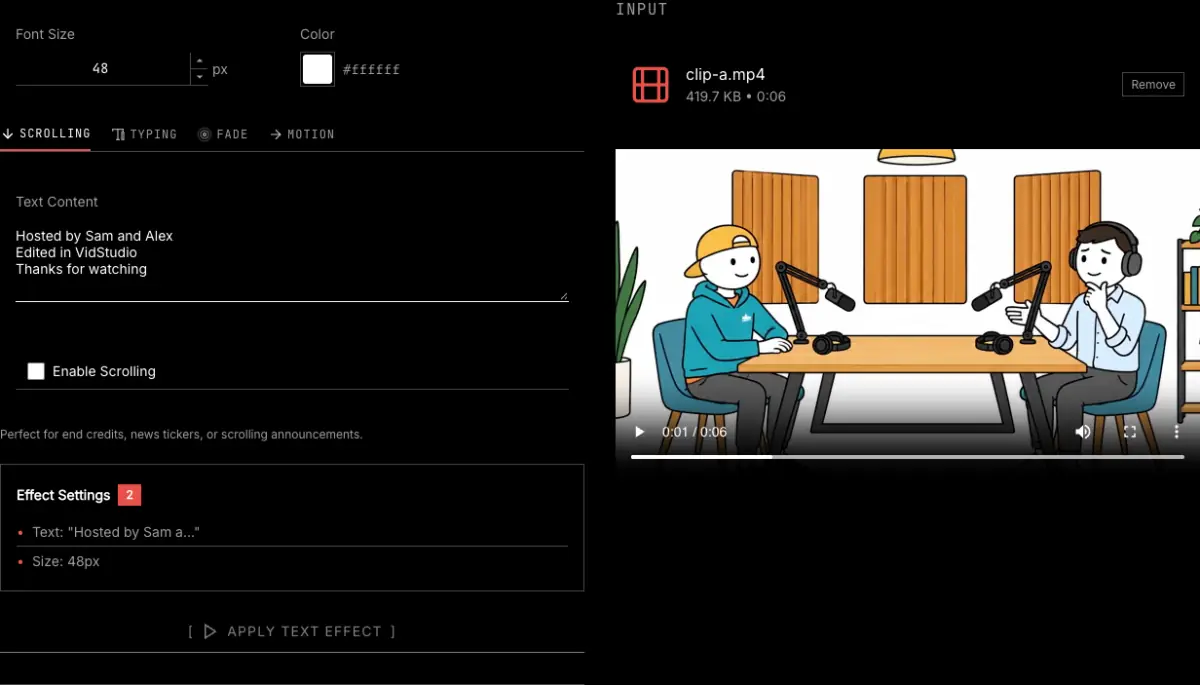
3 Apply and download
Press Apply Text Effect and download the MP4 with the animated text drawn in.
About Text Effects
Scrolling Credits
Create end credits, news tickers, or scrolling text in any direction. Control speed and starting position for perfect timing.
Typing Animation
Simulate text being typed character by character. Great for intros, tutorials, or creating emphasis.
Motion Effects
Add dynamic movement with bounce, swing, or pulse presets for eye-catching text animations.
Frequently asked questions
How do I add scrolling credits to a video?
Open the Scrolling tab, paste the credits, set the direction and speed, and process. The text scrolls across the frame for the time range you set.
Can I make text appear as if it is being typed?
Yes. The Typing tab reveals the text one character at a time, at the speed you choose.
What motion effects are there?
Bounce, swing and pulse presets on the Motion tab, plus fade in and fade out on the Fade tab.
Is my video uploaded?
No. The effect is rendered in your browser and the file never leaves your device.
Related tools
Add text to video
Static titles and labels with full control over font and timing.
Auto caption generator
Captions from the speech in the video, styled and burned in.
Burn subtitles into video
Put an existing SRT, ASS or VTT file onto the video.
Video thumbnail generator
Grab frames and storyboards from the finished video.